Introduction
Juggling multiple game accounts has become the new norm. Perhaps you have a personal and a business game account? A main and an alternate character in your favorite MMORPG? Or maybe you share a gaming PC with a roommate? Constantly logging out, switching credentials, and managing separate profiles is a chore that kills fun. 🎮➡️🔁➡️🎮
This guide is your ultimate playbook. We’ll explore practical, secure methods to manage multiple game accounts on iPhone, Android, and even tackle the dream of how to run multiple Steam and game accounts at once on your PC.
Why You Need to Manage Multiple Game Accounts
Before we get to the “how,” let’s solidify the “why”:
-
Compartmentalization: Keep your hardcore competitive account separate from your casual, experimental one.
-
Region-Specific Content: Access games, events, or prices available only on other regional servers (e.g., Steam regional pricing).
-
Family & Sharing: Maintain individual save files and achievements for different users on a single device or PC.
-
Content Creation & Testing: Streamers and testers often need fresh accounts to showcase early-game content or test updates without affecting their main profile.
Multiple Game Accounts on Android & iPhone
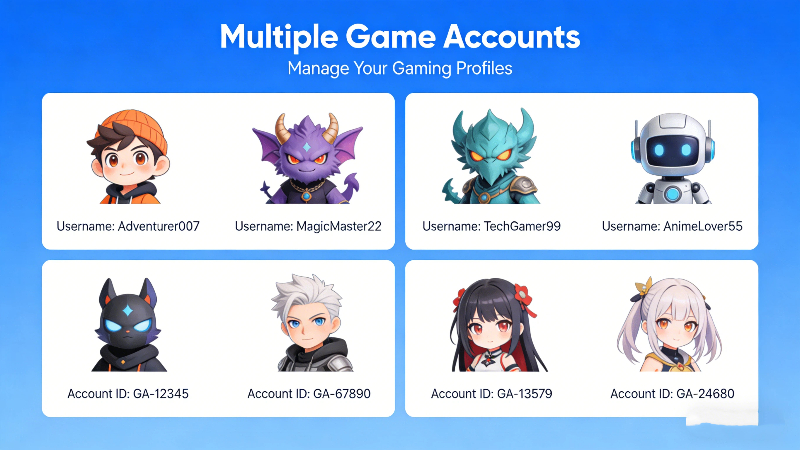
For Android Users:
Managing multiple game accounts Android devices is relatively straightforward, thanks to the platform’s flexibility. Many native Android phones now offer a “Dual Apps” or “App Twin” feature in their settings. This is a built-in app cloner. However, its functionality is often limited to specific, popular apps.
For true freedom, a dedicated parallel space app is king. You can clone any app or game, not just the ones that your maker pre-selects. The same game can run in two, three, or more separate instances. To prevent slowness during important gameplay times, look for a cloner that prioritizes seamless performance and privacy (such as a lock option).
For iPhone:
The quest for multiple game accounts on iPhone requires a different tactic due to iOS’s walled garden. Direct cloning isn’t supported. Instead, the most effective and safe solution (no jailbreak needed!) is, again, a parallel space application.
These apps create a virtualized environment within iOS. You add your games (like Genshin Impact, Call of Duty: Mobile, etc.) into this secure “space.” Inside it, the app runs with its own sandboxed data. You can log into a completely different Game Center, Facebook, or Apple ID. It’s seamless, secure, and feels like having a second phone inside your phone.
The PC Power Play: Running Multiple Steam & Game Accounts
This is the holy grail for many PC gamers. Want to run multiple Steam and game accounts at once? Maybe for trading, family sharing, or having separate public and private profiles. Doing this simultaneously requires a bit of technical finesse.
-
The Native Method
Steam allows you to log out and switch accounts easily, but only one can be active per Windows user profile. You can create separate Windows user accounts, but switching is clunky.
-
The Sandboxie Method (Advanced)
Sandboxie—now free and open-source—lets you lock each Steam window inside its own sealed bubble. Fire up Sandbox A for Account A, flip to Sandbox B for Account B, and both clients stay blind to each other. The trick is powerful, but the menus can feel dense if you rarely leave the default desktop.
-
The Virtual Machine (Nuclear Option)
Using software like VirtualBox to run a full, separate virtual copy of Windows is the most isolated method. You can run a completely independent Steam instance there. However, it’s resource-intensive (needs lots of RAM/CPU) and not suitable for gaming simultaneously on the host and VM.
Important Note: Always review the game’s and platform’s Terms of Service. Running multiple accounts to exploit gameplay (like farming to harass others) is often prohibited. Using them for legitimate personal management is generally acceptable.
Unified Management with Parallel Space (for Mobile)
Wouldn’t it be easier if you had one hub for all your mobile multi-account needs? That’s the philosophy behind Parallel Space. Instead of juggling different methods for different games, you centralize control.
-
Add any game (Clash Royale, Pokémon GO, Free Fire) into its secure environment.
-
Assign different accounts to each instance.
-
Launch them with one tap from a single, organized interface.
-
Protect your privacy with a built-in app lock.
It standardizes the process of handling multiple game accounts, whether you’re on Samsung, Google Pixel, iPhone, or iPad. It turns a fragmented problem into a streamlined solution.
Frequently Asked Questions
-
Is it against the rules to have multiple game accounts?
Most studios allow extra accounts for personal use, but the moment you exploit events, harass other players, bot, or dodge bans you’re in breach territory. Keep the spares for convenience, not for an unfair edge.
-
Can I run two mobile games simultaneously, like playing both at the same time?
You can clone the client and keep both icons, yet one screen still equals one active game. Quick switching works, but true side-by-side play demands a flagship phone with rock-solid multi-window mode and enough RAM to stop either session from stuttering.
-
What’s the safest way to manage multiple Steam accounts?
For households, Steam’s built-in Family Library Sharing keeps everyone on separate log-ins without breaking terms. If you need two windows open at once, Sandboxie is the go-to power tool—just treat it as advanced territory and read the sandbox rules before you launch.
-
Will using Parallel Space get my mobile game account banned?
Using a reputable tool like Parallel Space, which does not modify game data or provide unfair advantages, carries an extremely low risk. It’s seen as a second device by the game servers. The risk is far higher with “modded” APKs or cloners that inject cheat codes.
-
I need one solution for both my Android phone and iPad. Is that possible?
Yes! Parallel Space offers versions for both major platforms. While the underlying tech differs, the core user experience—adding apps to a parallel space and logging in with separate credentials—remains consistent. It’s the closest you get to a unified cross-platform account manager.
Conclusion
Managing multiple game accounts doesn’t have to mean managing constant frustration. On mobile, tools like Parallel Space provide a secure, elegant bridge to your digital gaming multiverse. On PC, solutions like sandboxing offer power for those willing to learn. By choosing the right method for your device and needs, you can reclaim your gaming time, reduce hassle, and enjoy every account you’ve built. Game on—on your terms.